
SunFire Enhancements
Medicare Customer Lookup
SunFire Customer Lookup gives agents built-in eligibility insights directly within the needs assessment flow.
SunFire returns Medicare eligibility from CMS and Medicaid eligibility from state-specific carrier sources, helping agents confirm customer details before quoting and enrollment. This built-in feature adds value for agents and is only available on SunFire.
Medicare Eligibility Lookup
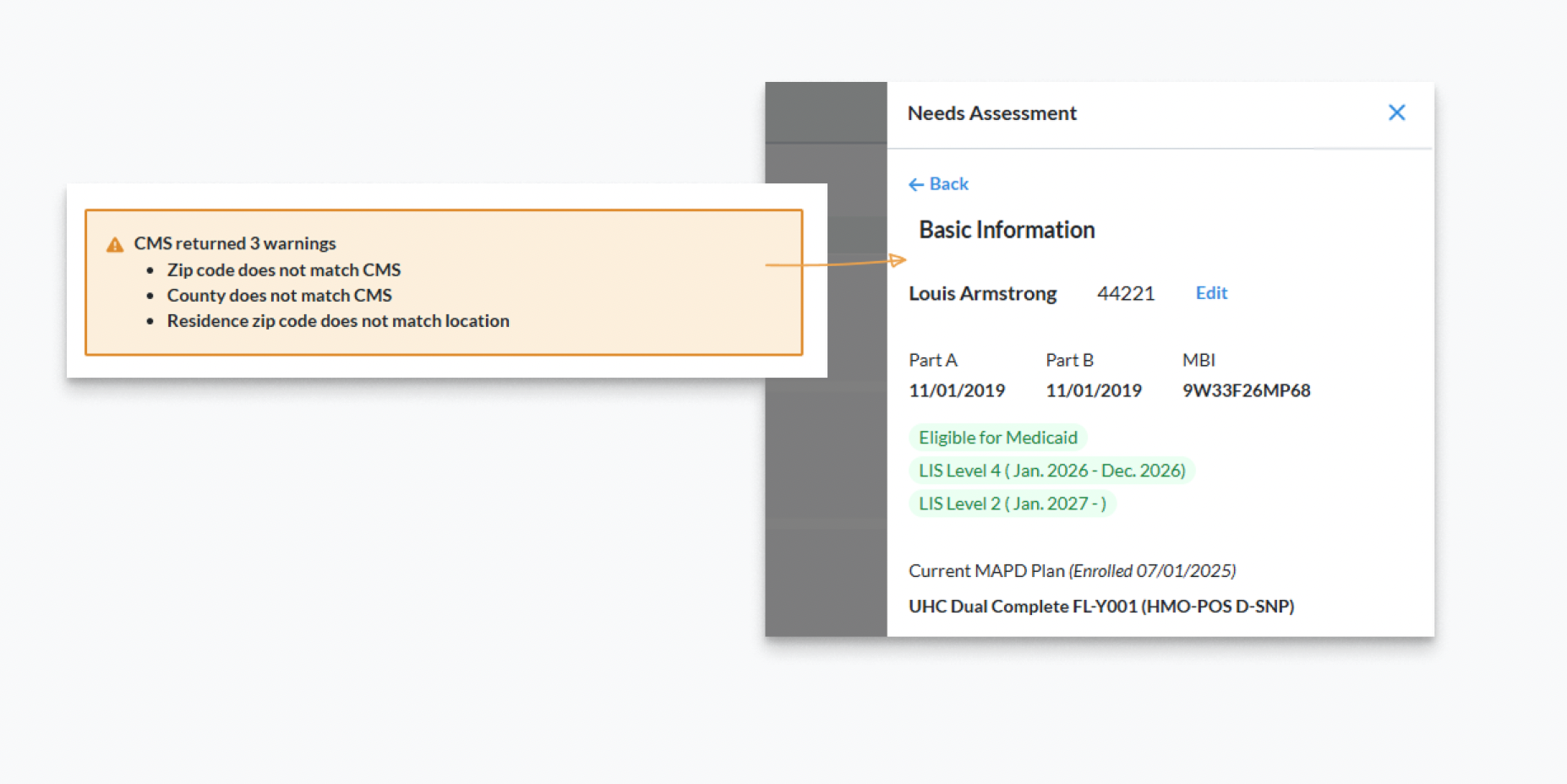
To help agents qualify and match customers with the best plans, we offer the Medicare eligibilty lookup. Lookup requires Zip code, DOB, and MBI.
Customer lookup will Pre-populate A & B effective dates (or inform the agent if they are missing), provide insight into enrollment history, showing current and previous plans. Built-in insights help agents identify potential SEP opportunities, such as address or eligibility details that may indicate a qualifying enrollment event. For example, a ZIP code mismatch may point to a potential SEP-MOV opportunity.
Modernized Search & Improved Contact Management
Medicaid Eligibility Availability
The Medicaid lookup only shows if a beneficiary shows as Medicaid eligible during Customer lookup. If you do not see the “Eligible for Medicaid” badge, you will not be able to run the Medicaid lookup.

SunFire supports ~99% Medicaid coverage nationwide.
Medicaid Eligibility Lookup
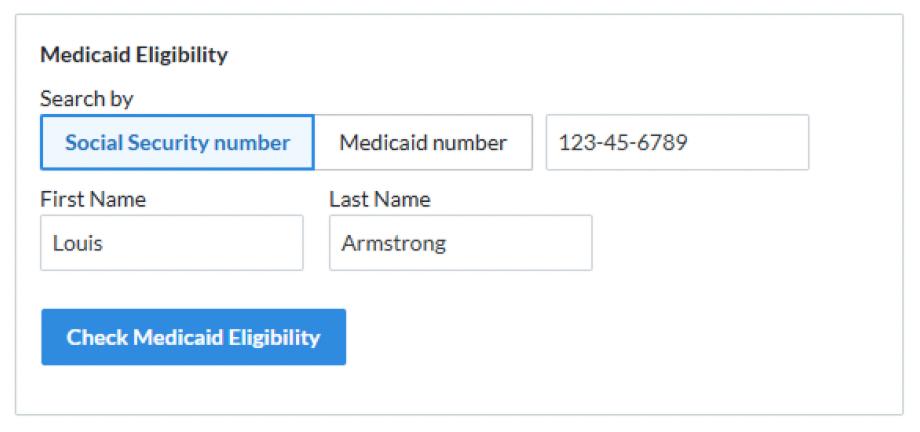
If the Medicaid lookup is available, selecting a Special Needs plan type will bring up the Medicaid Eligibility search tool. Lookup requires Medicaid ID or SSN. This search will confirm beneficiary’s Medicaid level (QMB, SLMB, etc.).
Plan Filtering
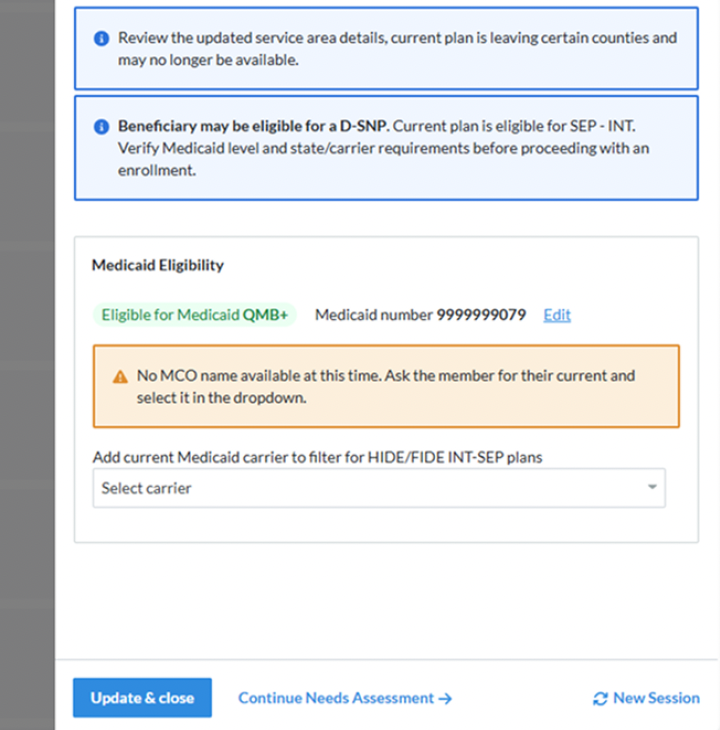
If a Medicaid level is returned, we filter the plans to show the ones who accept the returned Medicaid level.
MCO is the Medicaid managed care organization tied to the beneficiary. If it aligns with the DSNP carrier, it may indicate an INT SEP opportunity; if no MCO is known, agents can add it using the MCO drop-down.
Application Enhancements
If the Medicaid lookup is not run during the quoting flow, the lookup will show on the Application Enhancements page to make sure the agent confirms eligibility before moving forward to the enrollment.
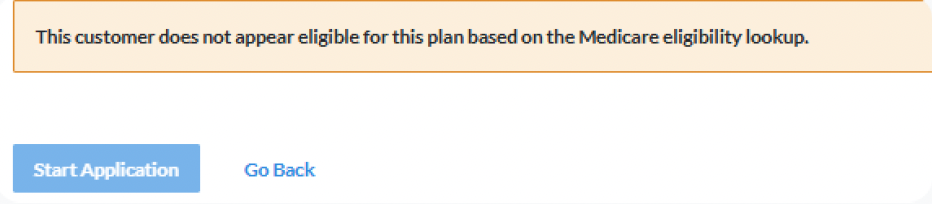
We can enable a hard stop if the Medicaid level does not match what the plan accepts. If this setting is on, a banner will alert the agent that the level does not match what the plan accepts, and the ‘Start Application’ button will be disabled.
Agents will need to go back and choose a new plan to continue.
SunFire BlazeConnect Updates
Introducing a smarter way to view and manage contacts
Improved Search & Filters
Find the right contact faster with improved matching, quick filters, and clearer results.
Faster Quote Start + Auto-Fill
Start a quote in fewer clicks and consistent auto-fill from existing contact details.
A New Contact View
Get the full contact picture in one place, including plans, drugs, and doctors.
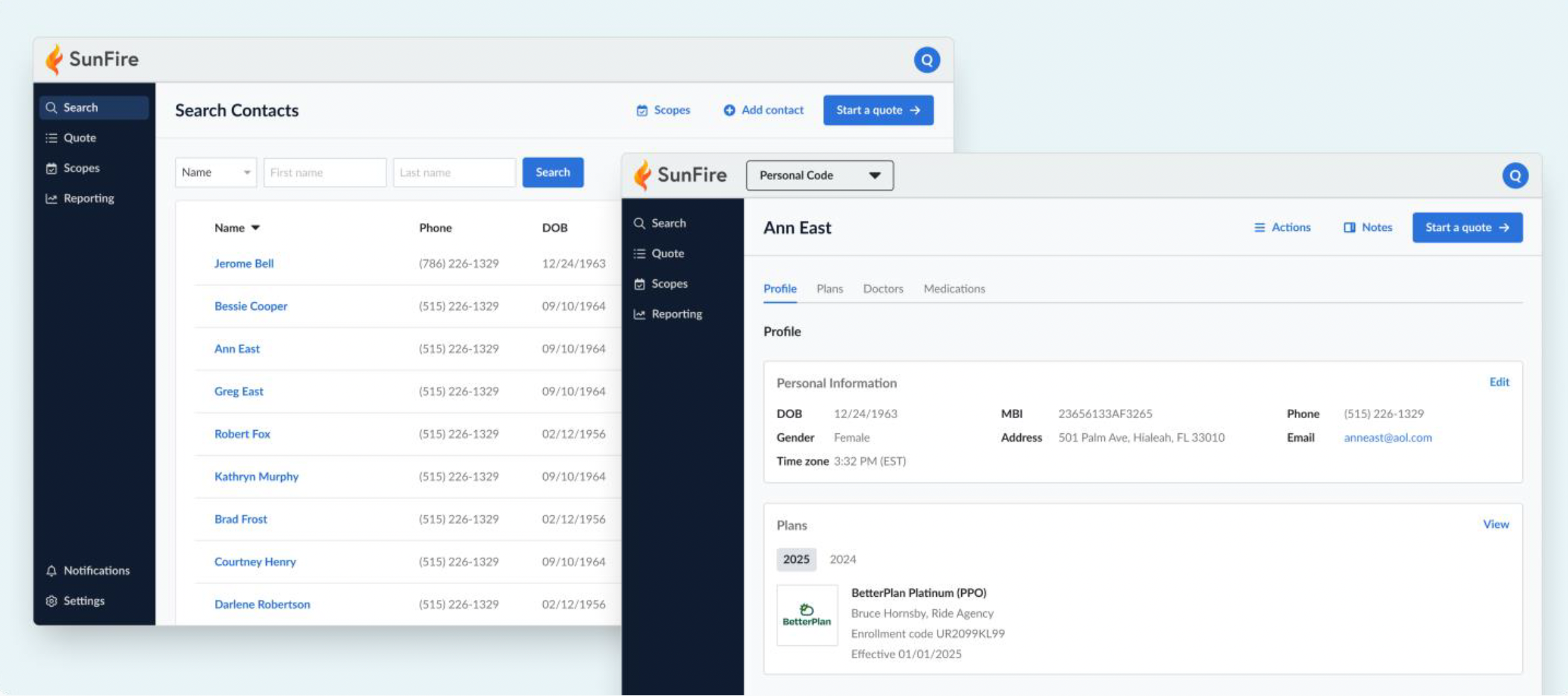
Modernized Search & Improved Contact Management
Clearer, cleaner contact search
Search results now present key contact information, Name, Phone, DOB, and Address, in an easier-to-scan format to help you find the right customers faster.
Archive and restore contacts
Clean up your contact list by archiving duplicate or inactive contacts. Archived contacts can be viewed and restored later if needed.
Contact tools at your fingertips
We’ve improved the contact profile to make it easier to complete common actions and key workflows, including:
• Actions menu: Send Personal URL, Send Scope of Appointment, Archive/Restore Contact
• Plans: View current and prior plan enrollments
• Doctors: Manage saved providers, including Primary Care Physician designation
• Medications: Manage medications and pharmacy details
• Start a Quote: Launch quoting directly from the header
• Notes: Add notes to help you remember key contact details
Frequently Asked Questions
1. Will my access or login to BlazeConnect change?
No. You’ll use your existing BlazeConnect login to access these new features. If your agency uses single sign-on, that will remain the same.
2. How will this modernization impact my daily workflow?
Your core tasks—quoting, submitting applications, and managing contacts—stay the same, with updated screens designed to reduce clicks and make key actions easier to find.
3. Where can I learn more?
Training resources and how-to articles will be available in the Agent Resource Center. We’ll share links and session details prior to release.
4. Will BlazeSync change with the CRM updates?
No. BlazeSync will continue to work the same way—updates submitted through your personalized URL will still sync to the matched contact profile, including personal details, doctors, and medications.
5. How is the Home Address pre-filled during enrollment?
If you start enrollment from an existing contact with a saved Home Address, the form will pre-fill using the customer’s saved address. If no contact is selected (no current customer), the form will continue to use the session location as it does today.
6. Will I be able to merge two existing contacts?
Merging contacts is not supported at this time. We recommend archiving old contacts instead. Archived contacts can be restored later if you ever need them again.
Updated Needs Assessment
We’ve moved the Needs Assessment to the plans page, making it easier to see how your customer’s unique needs affect plan selection.
Plans at-a-glance
Enter a ZIP code and plans automatically load in the background, so you can start exploring options immediately.
Everything in one place
All important customer information (doctors, prescriptions, and more) are now in a single side panel, making it easier to review and update.
Familiar, but faster
The Needs Assessment experience you’re used to, in a more streamlined format.

Key Benefits
More flexibility
Choose the order that works best for you – review plans first or gather client information first.
A better big picture
The new summary view makes it easier to see what you’ve added and what’s missing.
Builds client trust
Our customer lookup feature (renamed Basic Information) is now front-and-center, so you can prefill known doctors and prescriptions, get insights on potential eligibility concerns, and show your clients that their needs are understood.
Using Prospect Post?
If you are posting to the current Customer Profile page, we recommend changing to the Plan Results page once you move to this view.
UHOne/AdvGuard HIP:
SunFire Voice Signature is Live!
With SunFire’s Voice Signature process for UHOne, agents and beneficiaries no longer need to dial into a separate IVR line or retrieve verification codes and passwords. Instead, the agent stays on the call, reads the required statements directly from the screen, records the beneficiary’s verbal acknowledgment, and submits—without ever leaving the conversation. It’s that easy!
Here is what agents will see in the application:
